Systems
HUD and the shared world
Read cargo, health, the local radar, the universe map, and scores. Understand what to do if the connection drops.
Read the HUD
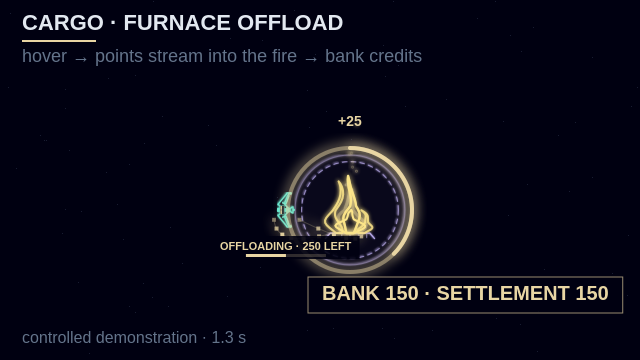
Gold crates fill the cargo bay inside local and crew hulls as they collect points; a full hold pulses with Cargo Full, and offloading shows a stream, countdown and completion flash. The HUD shows your bank, cargo capacity, kit, shared settlement progress and resource requirements, and the crew leaderboard, ranked by bank (top ten on desktop, top three on touch, so you may not appear). The settlement percentage averages its five requirements. A thin health bar always appears above living crew ships and above your own damaged ship, and the Contour Lock button shows whether a contour is available or locked. On mobile, two compact lines show bank and cargo, then kit and settlement level progress; the detailed points and resource requirements remain in the desktop HUD. On touch, the ability button names your tool and a ring shows its cooldown; desktop has no cooldown indicator. One line at the top briefly shows satellite pickups, Delivery +N or Team delivery +N each, and Scout build results; no message appears on death.
Travel prompt
Inside a lit furnace's visible footprint, the prompt offers travel; at Town Square it says Enter and opens a choice of Store or Fast Travel. Living pilots appear by name on the destination map; off-chart pilots get an edge arrow, and their markers do not select a destination. See furnace travel and store for controls and boarding rules.
Radar and universe map
The minimap shows nearby space; M or Map opens the full shared chart. Both keep north at the top, matching the viewport and furnace destination map. Your ship marker turns to show its heading. Pinch the full chart to zoom and drag to pan; desktop also supports the mouse wheel and +/− keys. The north arrow and legend sit inside the chart, and Center on you restores the nearby ship view. Furnace marks keep their exact world position as you approach and cross them. The minimap shows furnaces once explored and pins off-radar crew to its rim, while the full chart always shows every lit furnace and foundation; their names appear on the chart only after you zoom in close, and only lit furnaces show fire trails. Explored ground has a pale blue tint; dark fog hides uncharted rocks and loot.
Wrecks and nest ruins
Red nest marks identify discovered guarded resources, even while their guards sleep offscreen; the marker disappears when its resource is collected or moved, or its last guard dies. Final guard deaths leave gray ruins, and pilot deaths leave broken hulls nearby. These temporary remains give no loot and block nothing; they expire and disappear after a server restart.
Ricochet Court
The cyan open-corner marker northeast of Town Square is always visible on both maps. See bank-shot duels before entering.
Probe beacons
A pulsing cyan radar marker identifies a live Survey Probe. Follow its moving host to find scanned minerals; a low battery makes the beacon itself flicker pale yellow in the world while the radar marker stays steady.
Sound and haptics
The title screen has separate Sound, Music, and Haptics settings, saved in this browser; Sound starts off and Music starts on. They live only on the title screen. Haptics appears only on touch devices whose browser can vibrate, so it is hidden on desktop and iPhone. If sound stops, tap the game to let automatic audio recovery retry, and check your device volume and output.
Connection interruptions
The game retries about fifteen seconds, then returns to the title screen; choose Enter Game. A brief interruption restores your ship, and carrying cargo preserves your field position even after a longer absence. Progress is tied to this browser's saved pilot, so a private window, cleared site data, blocked storage, or another device starts a new pilot. A crash or restart can undo about the last second of play, with no warning beyond the Reconnecting banner.
When an update is available, choose Later to keep playing or finish your input; Update available reopens the notice. Choose Update and reload and confirm when ready; it loads the latest version, disconnects your flight and clears unfinished input, while other tabs stay open. This tab never reloads automatically, but a server update may disconnect you or require a reload before you can rejoin.
Generated scripts and styles remain available across website updates for at least 30 days, so deferred tabs can still load audio and other features. A server update can still require you to reload before joining.
Can't join
A disconnected-from-server banner can mean your nickname is in use by an online pilot (try another), the server is full, or your tab is outdated (reload). An "unexpected error" notice returns you to the title screen; choose Enter Game to restart, or reload if the problem repeats.
Diagnostics
On /debug, open Report a problem on the title screen or from the bug icon during play, describe the issue, then Send. Saved, pending delivery confirms server storage; Delivered confirms the team's inbox. Opening the report button after delivery starts a fresh report; New report beside a pending or blocked receipt opens another editor without closing the dialog. Reports include editor event counts and focus state to diagnose keyboard trouble, without recording keys or clipboard content; keep secrets out and save a copy until storage is confirmed.
The bug icon expands or collapses player and page session IDs, frame rate, and connection health; this browser remembers your choice. Logging defaults to Info; add ?log-level=debug, info, or warn to change it for that visit. Use Copy Diagnostics when reporting trouble, including silent audio or unexpected Contour Lock releases. Lock-release records name the cause; server position or heading rejections also record rail distance, alignment, and the acquisition window.
For a device performance check, open /debug?performance=collect, enter the game, warm up, then choose Start. Choose Stop after the run, then send a report with the test conditions; it includes a timing summary. Download the full recording before starting another collection, and treat incomplete runs as unverified.
Graphics option
Live diagnostics include a Device label: Low-end, Commodity, High-end, or Unknown. Unknown means the browser did not supply enough hardware information to classify it.
Try the experimental WebGL version to compare graphics performance on your device. It uses the same scene and controls and falls back automatically if the renderer is unavailable. Reload the standard version to return to the default renderer.
For a flight-resolution comparison, open /debug?performance=collect&renderDpr=1; test &renderGlow=off separately at the original resolution. Lower resolution softens canvas details; these diagnostic choices apply only to that visit. Low-end Mineral Scan keeps its separate resolution limit.
Campaign status
Campaign-enabled servers show the shared Deep Scanner ore total and UTC hazard warnings above the playfield. Crew signals and downed beacons appear nearby, at the playfield edge and on the chart; rescue and sac countdowns use the server clock. Downed deadlines and permanent frontier progress survive reconnects and server restarts, subject to the normal last-checkpoint crash window.
Exact values and detailed rules
Display and HUD values
The shared simulation runs at 60 frames per second. The local minimap uses a 1800-unit radar radius. Lit hearths appear there after the crew reveals them; dark furnace foundations inside that radar stay marked. Fire trails appear on that radar and on the full-screen universe map only after a furnace is lit, and they turn at right angles back to Town Square. The universe map also shows the shared exploration chart and other discovered assets across the 60,000-unit world. M or the on-screen Map button opens the overview; M, Escape, or Close returns to flight. Touch chrome hides those keyboard badges. Ships on the local minimap and universe map use each pilot's hull silhouette.
Connection and protocol values
The client allows at most 60 catch-up frames after a stall. The client retries a dropped connection after 500, 1000, 2000, 4000, 8000 ms, and treats 6 seconds of server silence as a drop. Live socket grace is 2 seconds; after the socket is gone, Enter Game returns you to the same ship for 30 seconds. Join records the client and server releases that issued the resume token and last wrote the score, plus the server times of those writes. Server-only score writes omit a client release.